








 ChatGPT
 Claude
 Grok
Grok Perplexity
 Gemini
You use a virtual card the same way as any Visa, by entering the card details at online checkout, saving it in an app, or adding it to Apple or Google Wallet to tap in stores. The card has a 16-digit number, an expiration date, and a CVV, so any place that takes Visa will take it. Spend within the limit you set, let refunds come back to the same card, and freeze or cancel it from your dashboard the moment you are done. Here is how each way works, step by step.
A virtual card throws people off for one reason: there is no plastic. So the first question is always "where do I even put it?" The short answer is that a virtual card carries the exact details a physical card carries. The number lives in your dashboard and your phone wallet instead of in your pocket, and you use those details the same way you always have.
This guide walks through every way you will actually use one: online at checkout, saved for a subscription, tapped in a store, and what happens with refunds, freezing, and limits. Each section answers one question so you can jump straight to the part you need.
How to use a virtual card online at checkout
Online is where most people use a virtual card, and it is the simplest. At checkout, you fill in the card fields the same way you would for a plastic card. Open your card in your dashboard or wallet so you can read the details, then enter them.
- Enter the 16-digit card number. Type it into the card-number field, no spaces needed.
- Enter the expiration date and the CVV. These sit right next to the number in your dashboard.
- Add the billing ZIP or address tied to the card. Many checkouts verify this, so use the billing details on the account.
- Place the order. If the charge is within the card's limit, it goes through like any Visa.
That is the whole thing. Because the number is single-purpose and easy to cancel, a virtual card is a safer way to pay a site you do not fully trust. For a deeper walkthrough of locking down online purchases, see how to shop online safely with virtual cards. If you are still deciding whether a virtual card fits, start with what is a virtual card.
How to save a virtual card for recurring payments
For subscriptions and bills, you save the card to the account once and it charges automatically each cycle. The steps are the same as a one-time checkout, you just tick the box to save the card on file.
Two things make a virtual card a strong fit for recurring spend:
- One card per service. Use a separate virtual card for each subscription so you can see exactly what each one costs and stop any single one without touching the rest.
- A limit that fits the plan. Set the card's limit to match the plan price plus a little room, so a surprise upcharge is declined instead of quietly clearing. A charge over the limit will not go through. Check whether your card limit is per charge or a running total, so a card you reuse for a monthly subscription does not decline on the next cycle.
When you want a service to stop billing you, freeze or cancel that card and the next renewal is blocked. There is no login hunt and no support call to cancel a charge that has not happened yet.
How to add a virtual card to Apple Wallet or Google Wallet and tap in store
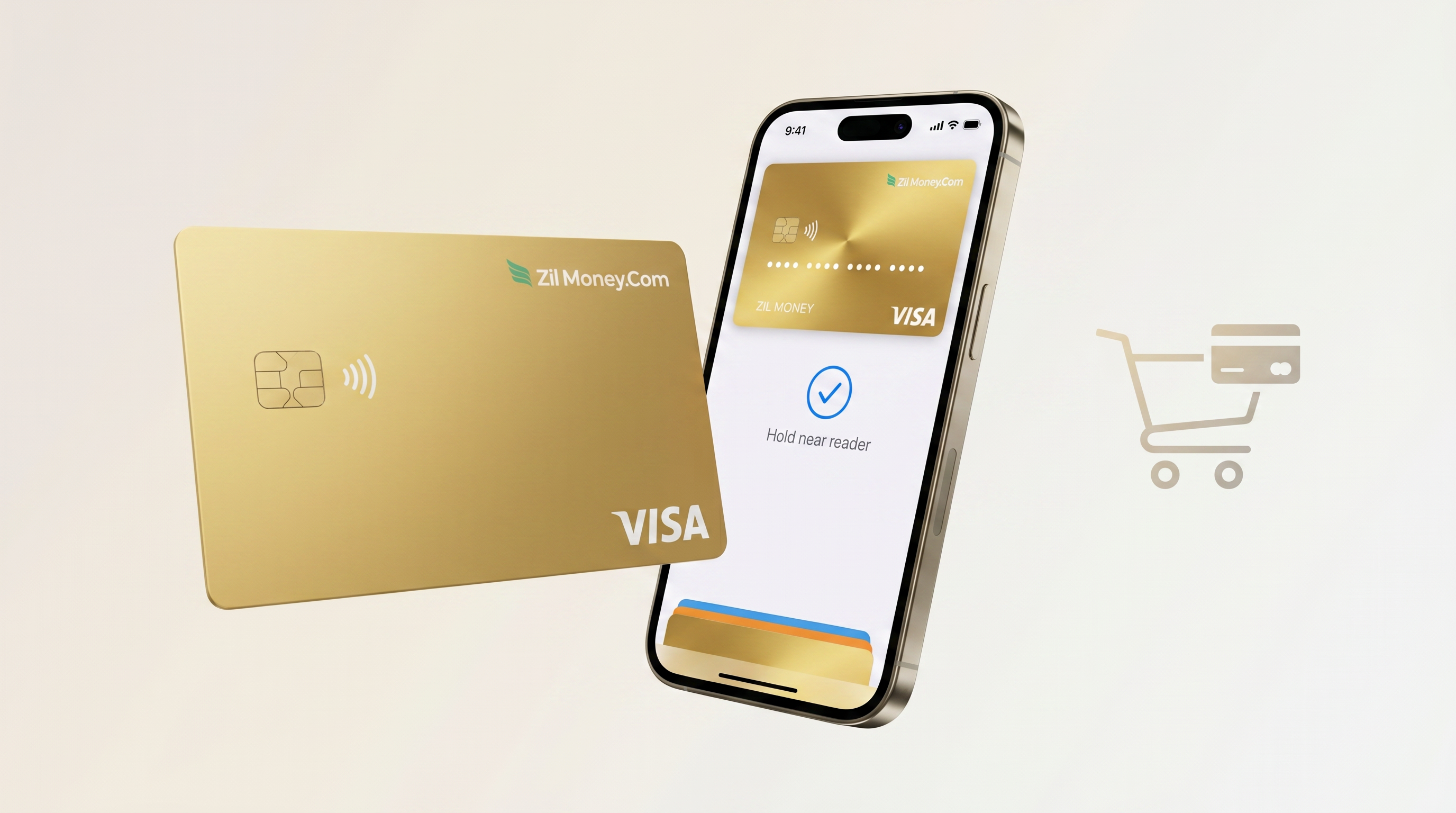
Yes, you can use a virtual card in a physical store. You do it through your phone. Add the card to Apple Wallet or Google Wallet, then tap your phone at the register the same way you would with any card in your wallet app.
- Add the card to your phone wallet. Open the card in your dashboard and add it to Apple Wallet or Google Wallet, or add it from inside the wallet app.
- Wake your phone at the register. Hold it near the contactless reader where contactless is accepted.
- Confirm with Face ID, a fingerprint, or your passcode. The payment goes through like a tap from a plastic card.
Where a counter does not take contactless, you can still use the card number, expiration date, and CVV for a keyed, phone, or pickup order. Tap to pay is the easy path, not the only one. For more on in-person use and what to expect at the register, see can you use a virtual card in a store. A virtual card is a real Visa, so it works wherever Visa is accepted; the full picture is in Visa virtual card.
How refunds return to a virtual card
A refund returns to the same card it was charged on, as long as that card is still open. If you cancel a card before a refund posts, the refund can be rejected and may need manual recovery, so never cancel a card while a return is outstanding.
Two practical notes keep this smooth:
- Keep the card open until the refund posts. Refunds route to the original card, so leave that card active while a return is outstanding and the credit has somewhere to land.
- Give it the merchant's normal processing time. A refund posts on the merchant's schedule, not right away, and then shows back in your wallet balance.
For the full rundown on returns, partial refunds, and a closed card, read do refunds work on virtual cards.
How to freeze or cancel a virtual card
Control is the whole point of a virtual card, and freezing or cancelling is where you feel it. You do both from your dashboard in a click.
- Freeze blocks new charges while keeping the card so you can unfreeze it later. It is the right move when you are between purchases, pausing a subscription, or unsure whether you will use the card again.
- Cancel stops the card for good. Use it when you are done with a service or a one-time buy and never need that number again.
A charge you already authorized can still settle after you cancel. Freezing or cancelling blocks new charges, but a payment that was already approved at the register or checkout may still post, the way it does with any card. If you are waiting on a refund, hold off on cancelling until it lands.
How to stay within the limit and allowed categories
A virtual card does more than spend; it enforces the rules you set. Two of those rules shape how a charge behaves at the moment you pay.
| Control | What it does | How a charge behaves |
|---|---|---|
| Spend limit | Caps the total the card can spend. | A charge over the limit is declined every time. |
| Category lock | Restricts the card to certain merchant categories, where supported. | A charge outside the allowed category may be declined. |
| Wallet balance | Funds the card from your prepaid wallet. | A charge needs enough available balance behind it. |
The spend limit is a hard line: spend over it and the charge stops, no exceptions. Category, location, and time controls depend on what your card program and the Visa network support, and a category check is a network decision, so treat it as a strong guardrail rather than a guarantee. Check which controls are active on your account before you lean on them. To pick the right limit and locks when you make a card, see what is a virtual card.
The best way to use a virtual card
If you want one rule of thumb: use one virtual card per purpose, and set its limit to fit that purpose. A card for a single subscription. A card for one online store you are trying out. A card for travel this month. When each card has one job and a tight limit, your statement reads itself, a leaked number costs little, and stopping any one charge is a single click.
That is also what makes a virtual card better than handing the same number to every site. You are not spreading one card across the web; you are giving each merchant a card that can only do what you allow. On taxes, treat any deductible spend as general information and confirm the specifics with your CPA.
People also ask
Can I use a virtual card in a store?
Yes. Add the card to Apple Wallet or Google Wallet and tap your phone at the reader where contactless is accepted. The card number itself is digital, so there is no plastic to swipe.
Do refunds work on a virtual card?
A refund returns to the same card it was charged on, as long as that card is still open. If you cancel a card before a refund posts, the refund can be rejected and may need manual recovery, so never cancel a card while a return is outstanding.
Can I reuse a virtual card?
Yes, as long as the card is open and within its limit. You can use the same card again at the same merchant or a new one, unless you set it to be merchant-locked where that is supported.
What if a charge is declined?
A charge over the card's limit is declined. A charge outside an allowed category may be declined where category locks are supported. Check the limit, the wallet balance, and any locks, then try again.
Can I add a virtual card to Apple Pay or Google Pay?
Yes. Add it to the wallet, then tap to pay in stores that take contactless.
Why was my virtual card declined?
It can be over the limit, an off-list merchant category where the control is supported, the card is frozen or past its dates, or not enough wallet balance.